






Secure Email
PrimeWest Health uses secure email as a safe and effective way to communicate sensitive information among PrimeWest Health staff, county case managers, and providers. PrimeWest Health uses Microsoft Purview for all secure communications.
How to open an email message encrypted with Purview Message Encryption
Note: You may have a different experience, depending on the type of email system you are using.
Microsoft Outlook + Microsoft 365 Subscription
If you are using Microsoft Outlook for your email and have a Microsoft 365 subscription, secure emails will arrive with a lock icon indicating the email is encrypted. You can simply read the email as you would any other. You will not need to take any additional steps to authenticate your identity. The authentication and decryption all occur within Microsoft 365 and Outlook will open the message like normal.
A lock icon on the incoming mail will identify that this email is encrypted.
A banner at the top of the message will inform you of any restrictions.
Other Email Client or Outlook without a Microsoft 365 Subscription
If you are using an email client such as Gmail or Yahoo or Outlook without a Microsoft 365 subscription, you will receive an email with a link to the secure message. To read the message, you will need to click the link and follow the instructions to have a one-time passcode sent to your email inbox. Once you receive the passcode, you will enter it where indicated to authenticate your identity and open the message. The steps are outlined below.
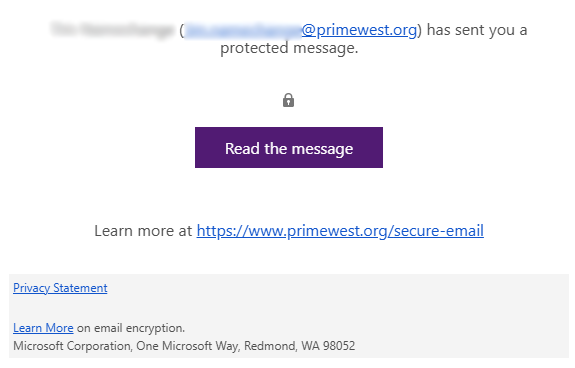
- Open the encrypted email message and click Read the message button.
-
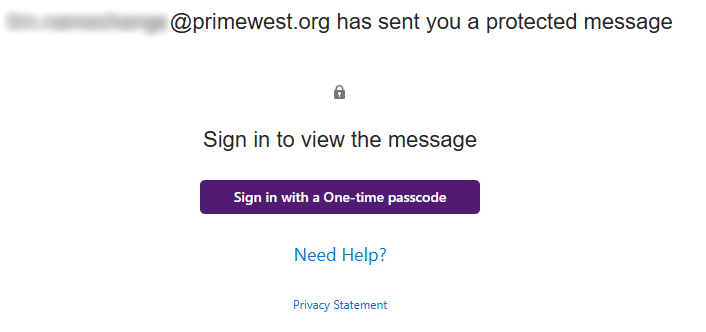
Click the Sign in with a One-time passcode button.
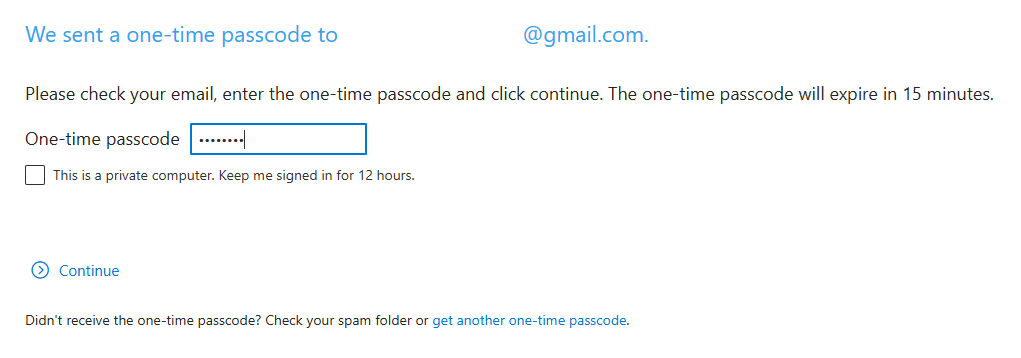
- Check your email for a new message containing the passcode. This passcode will expire after 15 minutes. If the passcode expires, you can request a new one.
- Type the passcode into the text box and click Continue.
- You will then be able to read the message and respond.

PW_2011_205
Updated_01/23/2026

